
How to Set Up a Home Golf Simulator: A Practical Planning Guide
A home golf simulator is a set of parts that have to work together: a safe hitting area, ball containment, a launch monitor, compatible software and a way to see the result. Plan the room and the routine first. The projector and the launch monitor deal can wait.
Scope: This is a planning guide based on manufacturer setup documentation checked October 9, 2026. We have not built or tested these installations ourselves. It is not an engineered enclosure design or a substitute for your equipment’s instructions. Do not hit balls until the installation meets those instructions and everyone using it can swing safely.
Step 1: Decide what a normal session looks like
Describe an ordinary evening in the space. Will you hit wedges into a net and check numbers on a tablet? Play courses with friends on a projector? Pack it all away so the car fits in the garage? These are different projects, even with the same launch monitor.
Plan the smallest complete setup that handles that ordinary session. A large projected image is fun, but it should not take money away from containment or a decent hitting mat. If group course play is the whole point, confirm the exact software experience before buying a practice-only package.
Step 2: Measure the usable space
Sketch the floor with the hitting position, device, containment, doors, storage and display. Mark overhead obstacles like lights, beams and garage door tracks. The usable area is often much smaller than the room’s listed size.
Check clearance for every golfer and club you expect. A setup that works for one person’s short irons does not prove there is room for a taller guest with a driver. Do not test clearance with a full swing near something you are unsure about; fix the layout on paper first.
SkyTrak’s room planning page gives a useful general reference: at least 8.5 feet wide, 15 feet deep and 8 feet high, with 17 feet of depth for a more comfortable setup. Treat that as a starting point and check the needs of your own monitor and enclosure.
Step 3: Find out where your monitor sits
Device position changes the room you need more than almost anything else. Radar units that sit behind the golfer need depth. Camera units beside the ball need width but less depth.
| Monitor | Position | Indoor flight or room note |
|---|---|---|
| Garmin R10 | 6 to 8 feet behind the ball | At least 8 feet of ball flight to the net |
| Rapsodo MLM2PRO | 6.5 to 8.5 feet behind the ball | At least 8 feet to the net |
| FlightScope Mevo Gen2 | 8 feet behind the tee | 8 feet of ball flight; stickers or RCT balls for indoor spin |
| Shot Scope LM1 | 1.4 m (about 55 inches) behind the ball | Check Shot Scope’s guidance for net distance |
| GOLFBUDDY Shot Mate | 1.5 m behind the ball | Check GOLFBUDDY’s guidance for net distance |
| Original SkyTrak | Beside the ball, 11.5 to 12.5 inches away, aimed with a laser dot | No device behind the golfer |
| Garmin Approach R50 | About 1.5 feet (0.5 m) to the side of the tee, facing it | No leveling required, per Garmin |
| Uneekor EYE MINI CORE and LITE | On the ground at the hitting area | Indoor only; needs a PC and power |
Sources: Garmin R10 setup instructions, Rapsodo MLM2PRO FAQ, FlightScope Mevo Gen2 page and Uneekor model differences, plus each manufacturer’s manual for the other models.
Add those distances together. A radar unit 8 feet behind the ball with 8 feet of flight needs at least 16 feet before you count space behind the screen or net. None of these figures include the enclosure’s own rear clearance, width or height. If the pieces do not fit, change the design before ordering. Our article on ball flight distance for radar units goes into more detail.
Step 4: Plan containment for misses
Choose a golf-rated net or screen system for the use you have in mind, then follow its installation and inspection instructions. The launch monitor is not a safety barrier. Think about lofted shots, shanks and thin strikes, exposed frame parts, and whether a ball could reach a person, window, car or neighbor.
Keep people and pets out of the hitting and rebound areas. Do not guess mounting loads or wall clearance; those belong to the containment maker’s specifications. If the room cannot support the installation they describe, use a different design or a different room.
Before each session, check for damage, loose fixings and anything that has moved. A setup that gets folded away should get a fresh check each time.
Step 5: Choose the monitor and software together
Make a compatibility list: the exact monitor, app, phone or computer, operating system, connection method and paid plan. Confirm each with the manufacturer. “Supports simulation” does not mean your preferred software runs on your tablet.
PC requirements are a common surprise. Uneekor’s EYE MINI models need a PC. Foresight’s Premier software for the Bushnell Launch Pro needs a gaming PC. E6 Connect on a PC needs a dedicated graphics card, per FlightScope’s Mevo Gen2 requirements. Our PC vs iPad article covers that choice.
For buying tradeoffs, see Garmin R10 vs Rapsodo MLM2PRO, EYE MINI CORE vs Mevo Gen2 and SkyTrak ST MAX vs EYE MINI LITE. For a shared simulator, also check player switching, left-handed support and the games you plan to play.
Step 6: Treat the display as its own project
A phone or tablet is enough for many practice setups. If you want projection, use the projector maker’s throw distance calculator with your screen size and the mounting spot you actually have. Screen size alone does not tell you whether a projector can fill it from a safe position.
Budget for the mount, power, signal cable and cable route, and keep all of it out of the swing and ball paths. Get qualified help for electrical or structural work.
Think about controls too. If you have to walk into the hitting area between shots to tap a screen, move the controls somewhere you can reach safely.
Step 7: Make the hitting position repeatable
Once the room is safe, set up the monitor using its current instructions. Confirm alignment, level and ball position. If the mat is raised, check the device’s guidance for height differences rather than guessing.
For MLM2PRO club data, Rapsodo’s alignment and leveling guide uses the app’s hitting zone overlay and asks you to set handedness and level the unit. Feature-specific steps like these matter as much as room dimensions.
Once it works, add removable floor marks or a short reset checklist. For a portable setup, a photo of the verified arrangement helps you spot when something has moved.
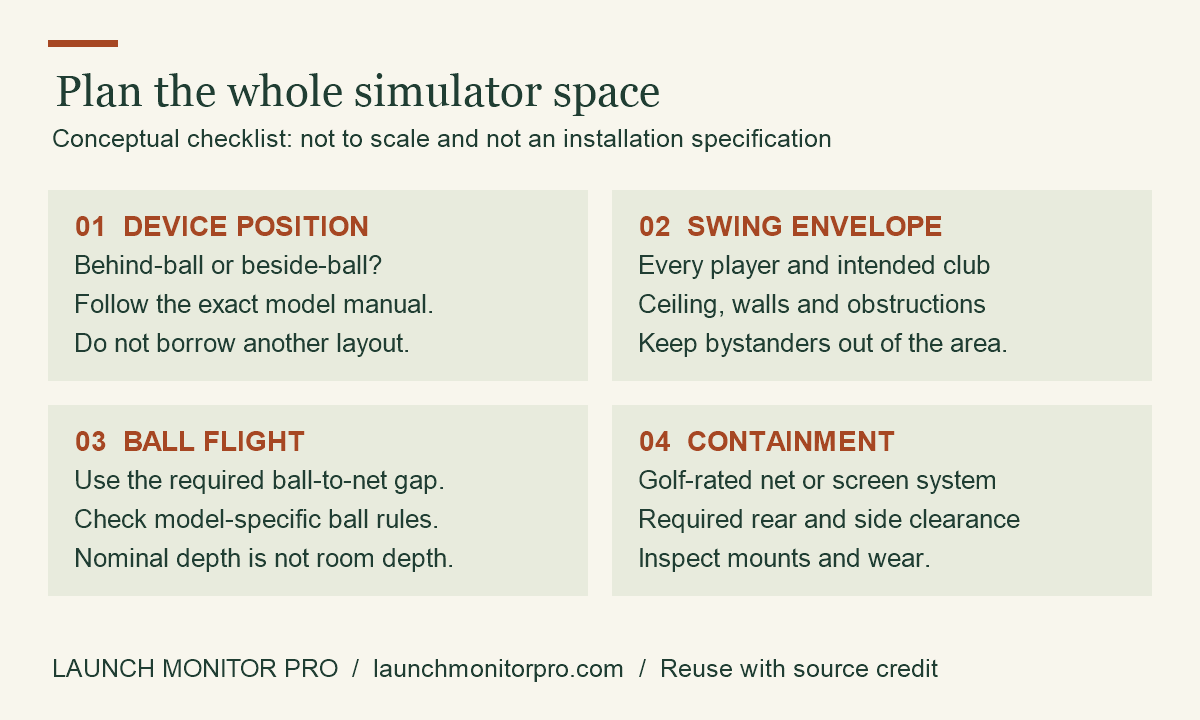
Original explainer by Launch Monitor Pro. You may reuse this graphic with visible credit and a link to the source article. This is a planning aid, not product test data.
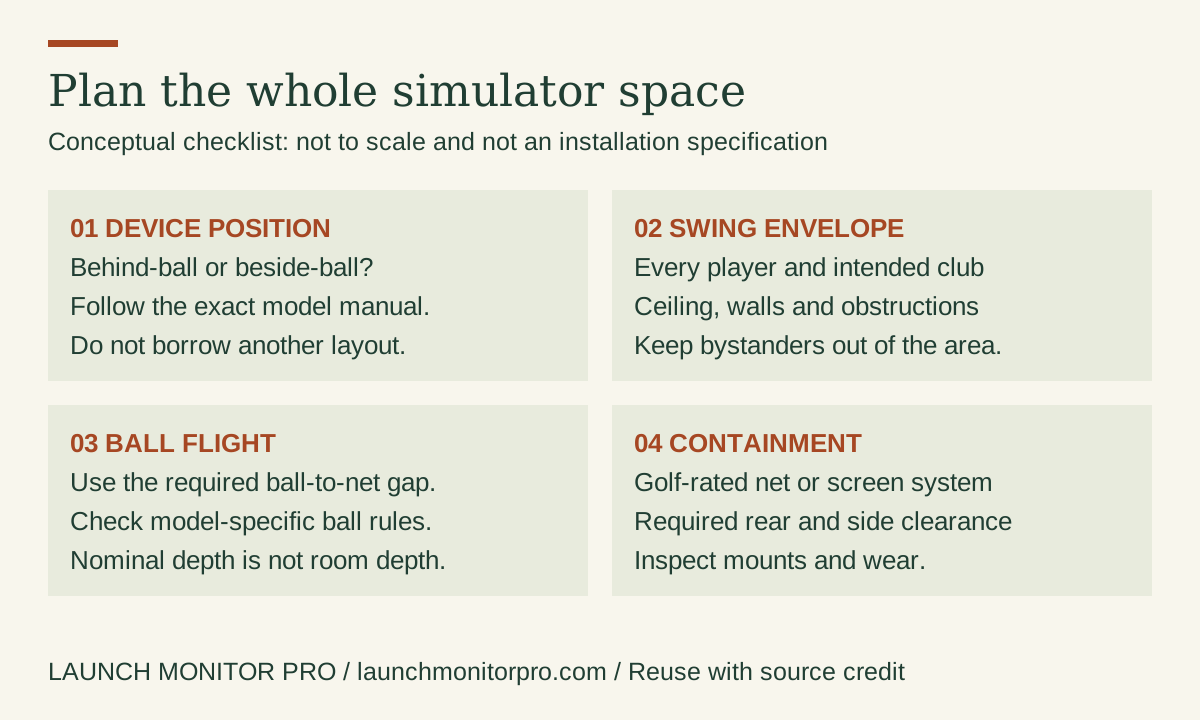
Embed this graphic on your blog
Step 8: Run a first session as a check
- Confirm the enclosure, clearances and equipment positions.
- Connect the app and check the selected club and settings.
- Hit a modest set of ordinary shots and note any missed reads.
- Look at whether the readings are plausible and consistent enough for what you want to do.
- If something looks wrong, change one setup variable at a time and check the manufacturer’s troubleshooting guide.
- Try the actual practice or play mode you bought the system for.
This is a working check, not an accuracy test. A believable shot trace does not prove the room is safely contained or that the data has been independently validated.
Budget the whole first phase
Split required items from upgrades. Required items make the installation safe and usable: containment, hitting mat, monitor, compatible device and any needed software. Projector, flooring, seating and audio can come later, depending on your goal.
Include yearly subscriptions and consumables such as club stickers or marked balls. Price a complete, usable setup rather than a monitor surrounded by parts you have not costed yet.
Once it works, give the first session a purpose. Our launch monitor metrics guide shows how to choose a few numbers and turn them into a repeatable exercise.